Knowledge base
How to add inline widgets to your website
Enhance your website’s functionality by embedding external tools directly into your pages. Whether you want to add a custom form, a social media feed, or a specialized tool from another service, you can do so easily using the Widget section.
By using custom HTML code, you can integrate almost any third-party service that provides an "embed" option.
What is an Inline Widget?
An inline widget is a piece of external content or a functional tool that is "embedded" directly into the layout of your webpage.
Unlike a "popup" (which appears on top of your site) or a "floating widget" (like a chat bubble that follows you as you scroll), an inline widget lives within a specific section of your page. It looks and acts like a native part of your website design.
Since the "Custom Code" source supports HTML, users can embed almost any service that provides an "Embed Code" or "iFrame." Here are some of the most popular use cases:
- Booking & Scheduling: perfect for service-based businesses like coaches, salons, or consultants, i.e. with services like Calendly or Acuity Scheduling you can display your live calendar so visitors can book appointments without leaving the website.
- Advanced Forms & Surveys: while 🌱kvitly has a built-in form builder, sometimes users need advanced logic or specific integrations like Typeform, Google Forms or Tally.
- Social Media Feeds: keep your website content fresh by pulling in your latest social updates from Instagram or TikTok Feeds (use tools like Elfsight or Curator.io to show a gallery of your latest posts). With X (Twitter) you can embed your latest tweets or a specific hashtag feed.
- Reviews & Testimonials: build trust by showing real-time social proof, showcasing your reviews from Trustpilot or Google Reviews.
- Audio & Playlists: Great for podcasters, musicians, or creating a specific atmosphere. We have native integration with SoundCloud, and via Custom code, you can pull your content from, let’s say, Spotify.
- Specialty E-commerce & Donations: with services like Buy Me a Coffee, you can add a small support/donation module.
Step-by-step instructions
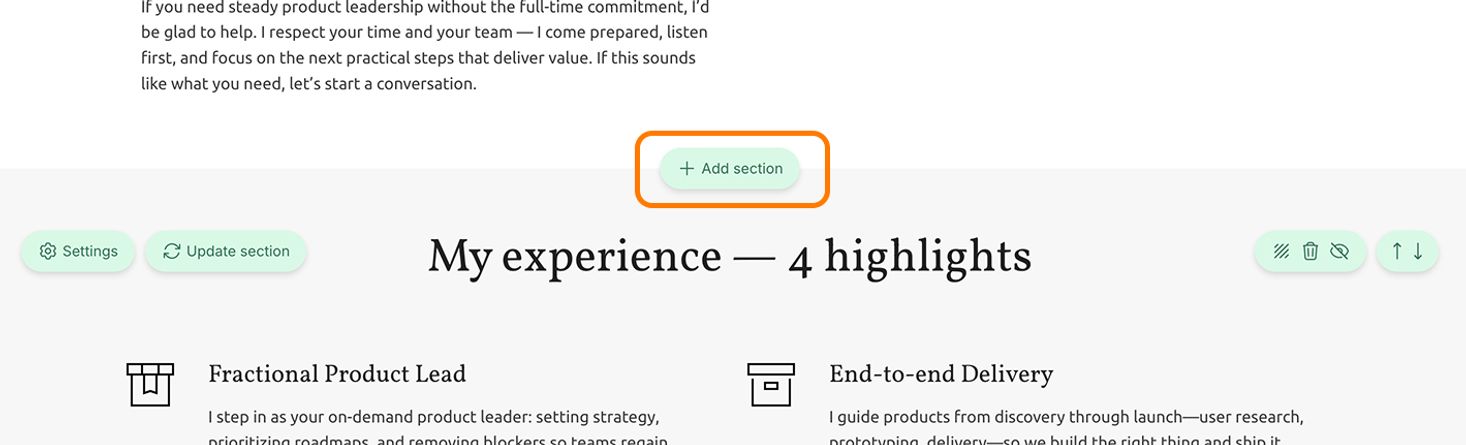
1. In the website Visual Editor, click on the "+" icon at the location where you want to add the widget.
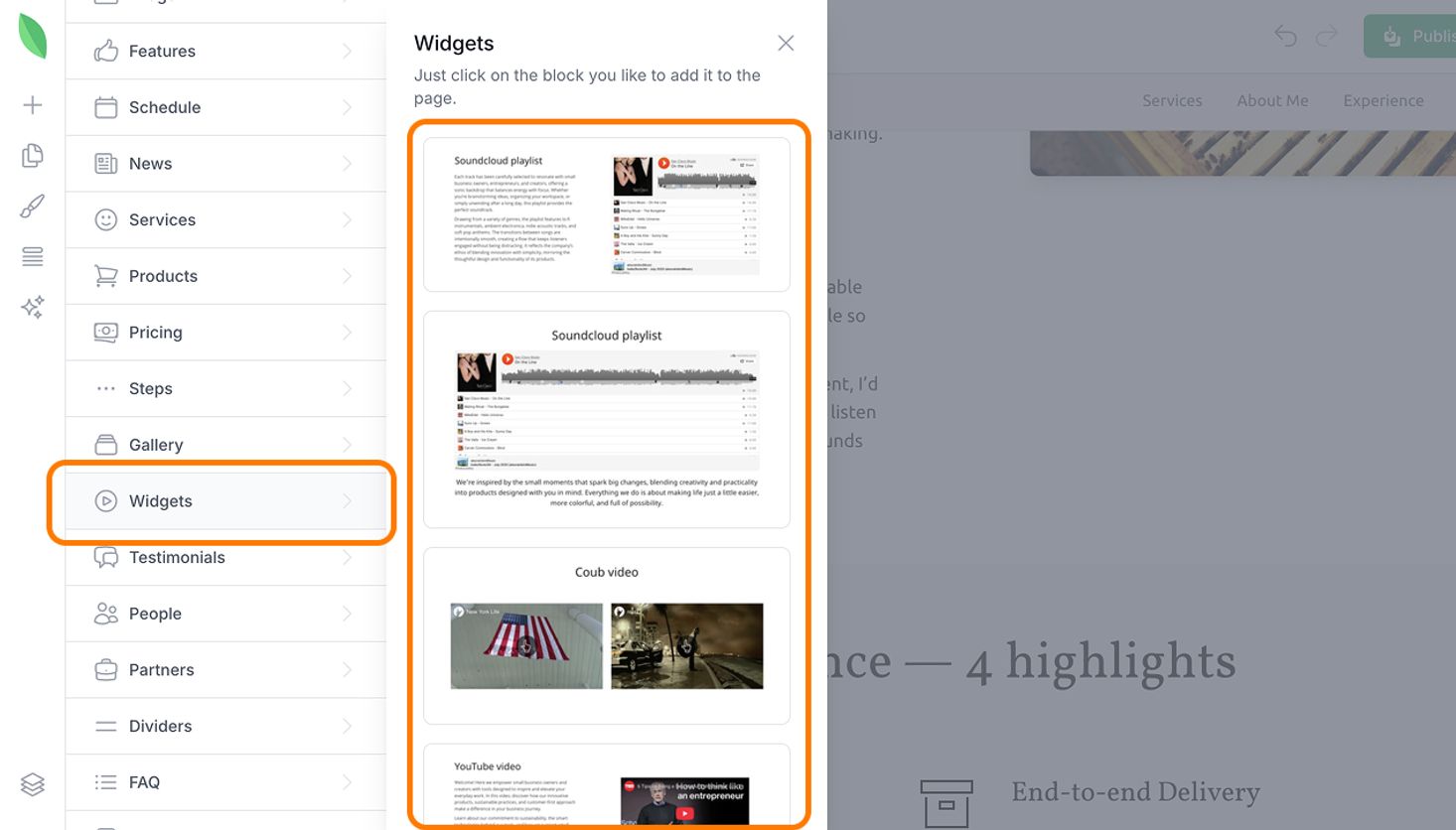
2. In the section selection panel, navigate to the Widget category. Browse the available layouts and click on the one that best fits your design to add it to your page.
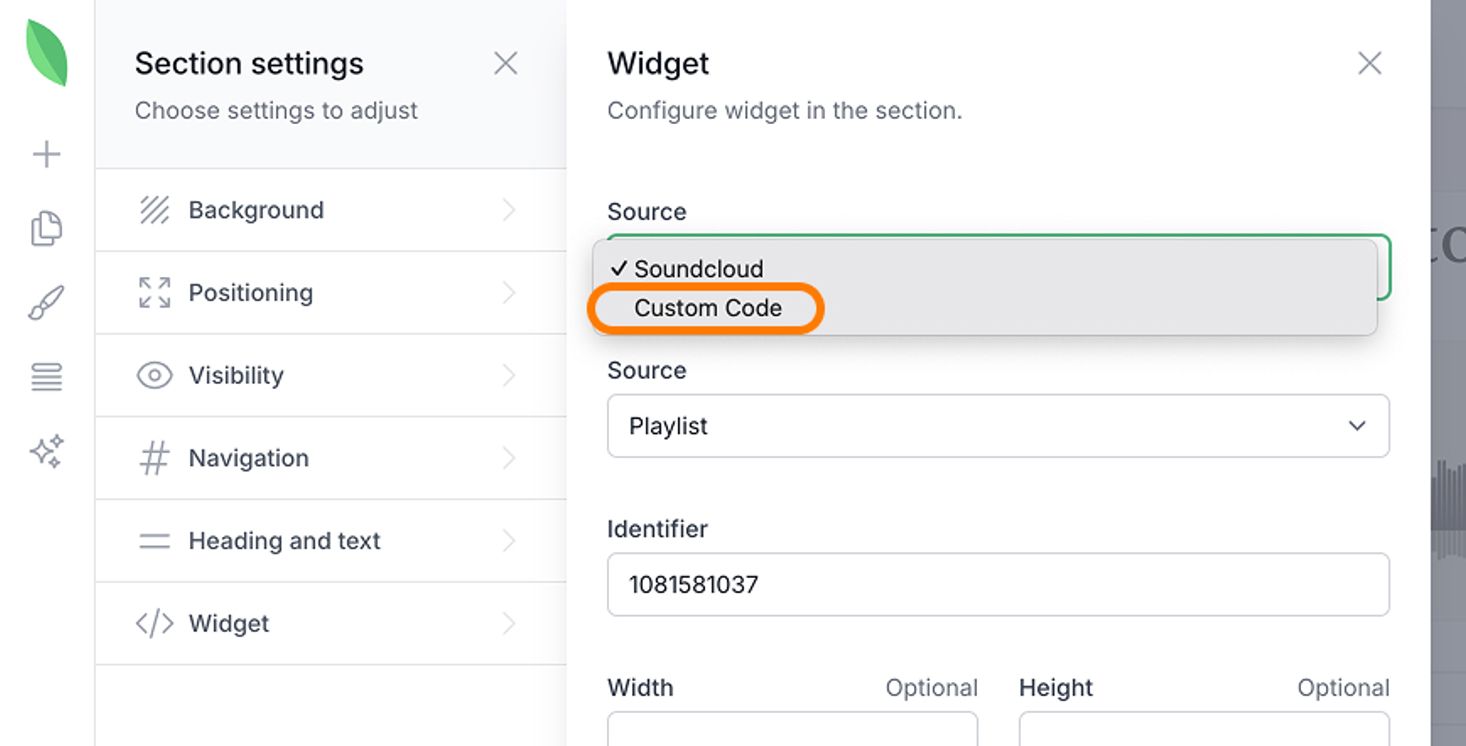
3. Once the section is added, click on the widget to open its settings.
4. In the widget settings panel, find the Source option and select Custom Code.
5. Paste the HTML code into the provided text area. You can typically find this code in the "Embed" or "Share" settings of the external application you are integrating with your 🌱kvitly website.
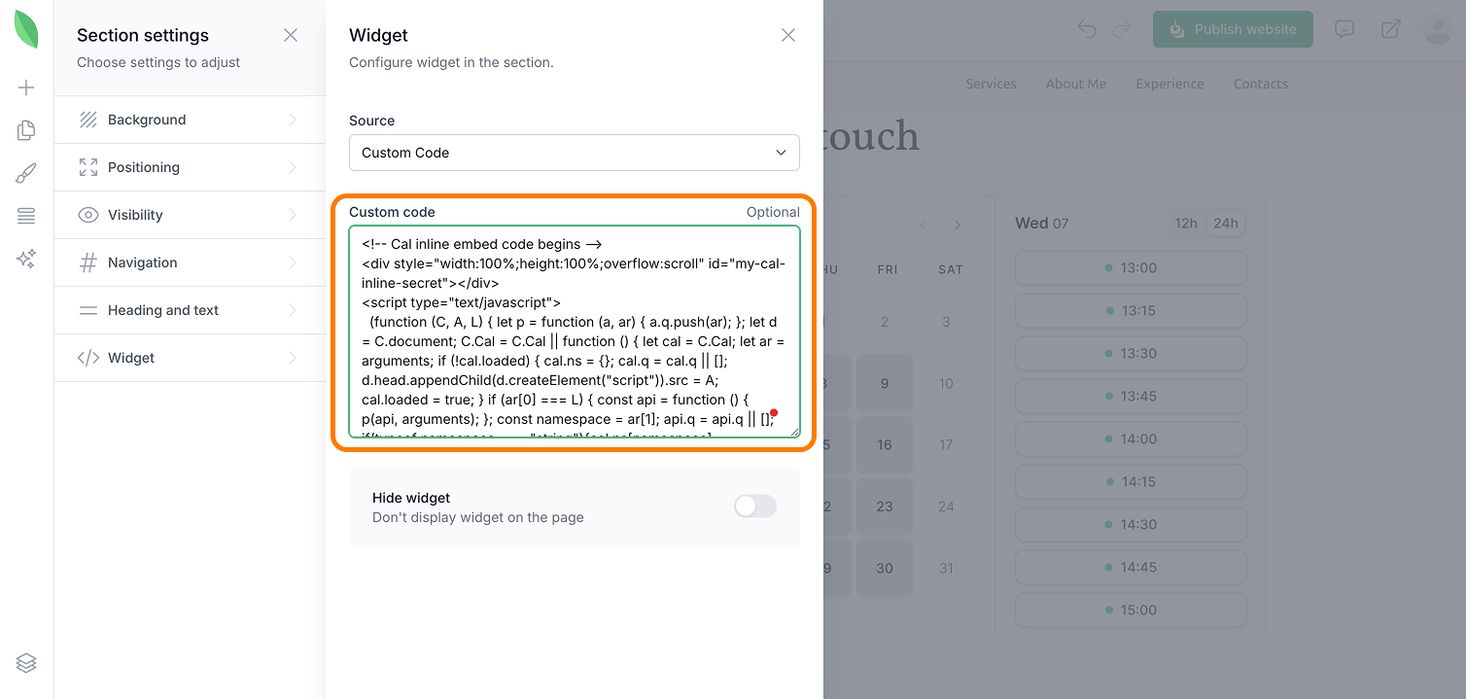
6. Publish your website to make the inline widget visible to your visitors.
Your custom widget is now live and ready to interact with your customers!
Still have questions?
Feel free to contact us via chat on our website. We’re online weekdays from 10 AM to 6 PM CET.
Wanna talk to a person?