Knowledge base
How to add a Google Map to your website
Adding a map helps your customers find your physical location without any guesswork. Here is how to set it up in a few simple steps.
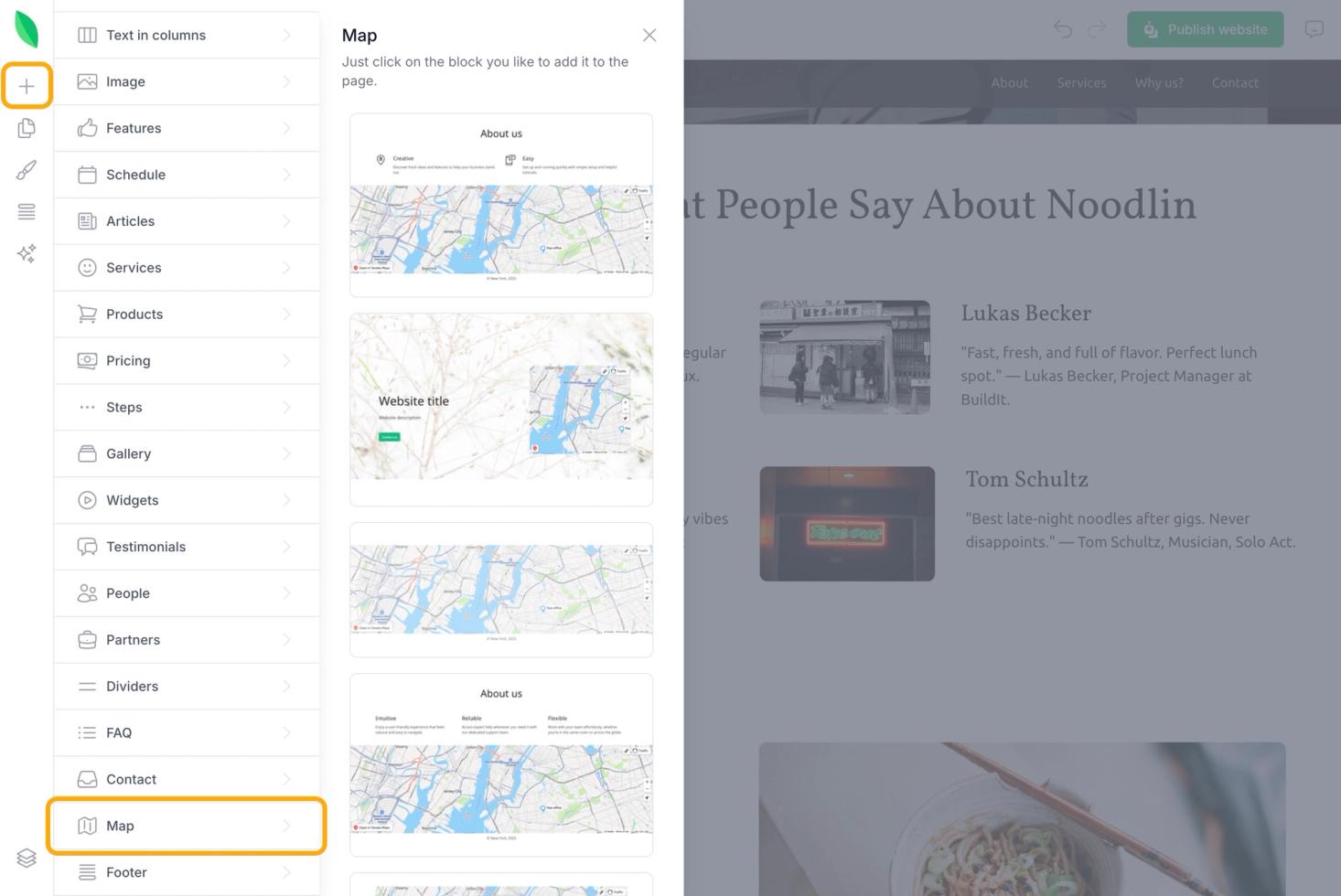
1. Add a map section to your website: You can choose the section that you like most from the designs we have in "Maps"
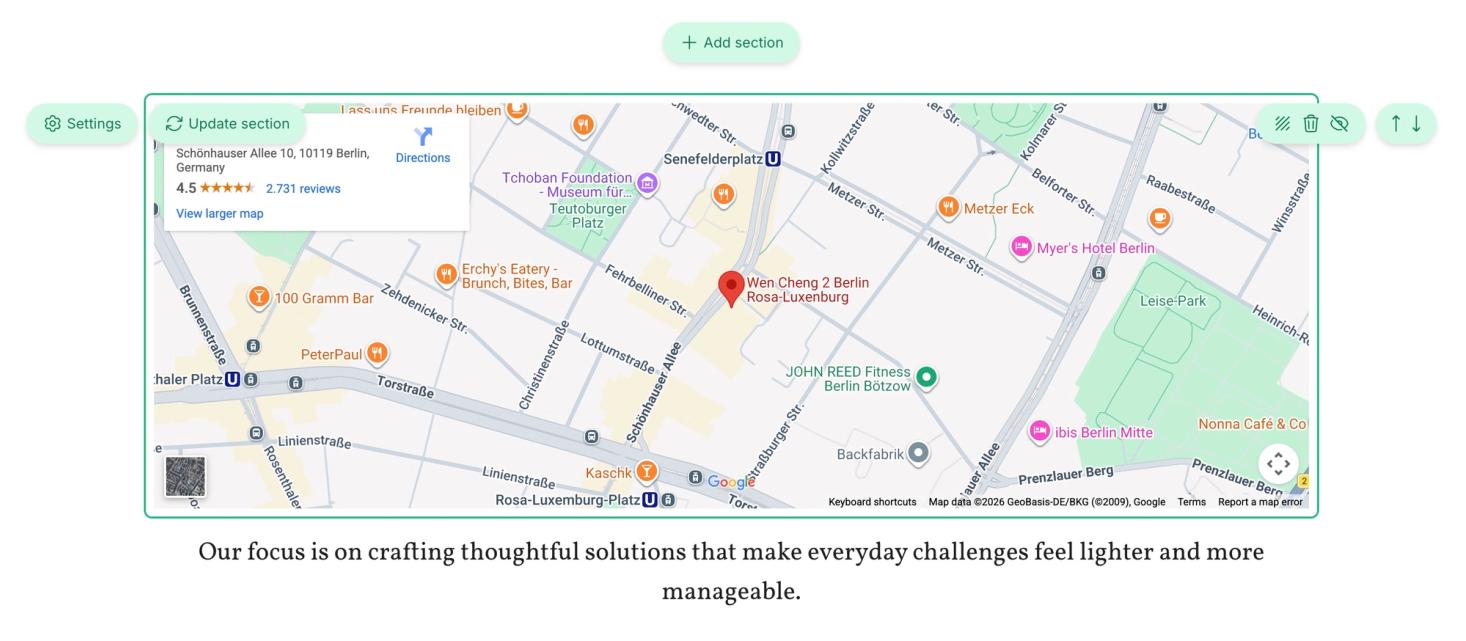
2. Open the configuration: Click right on the map in the section you’ve just added. A settings panel will open on the left side of your screen.
3. Choose the map provider: We support Yandex maps and Google Maps. Choose Google Maps if that's what you need.
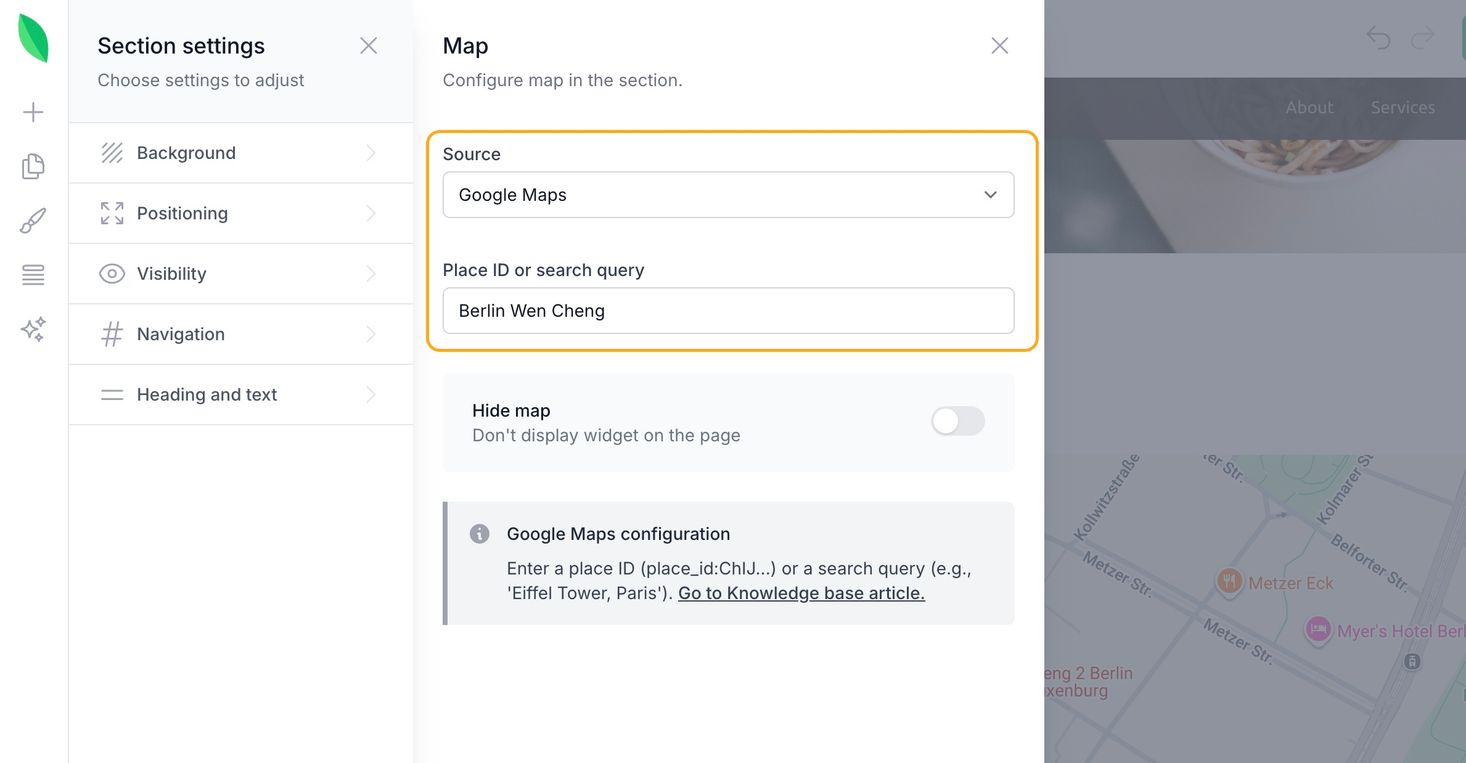
4. Set your location: In the Place ID or search query field, type your business name or your full street address.
- Search Query: Simply type your business name or address (e.g., 123 Flower St, New York).
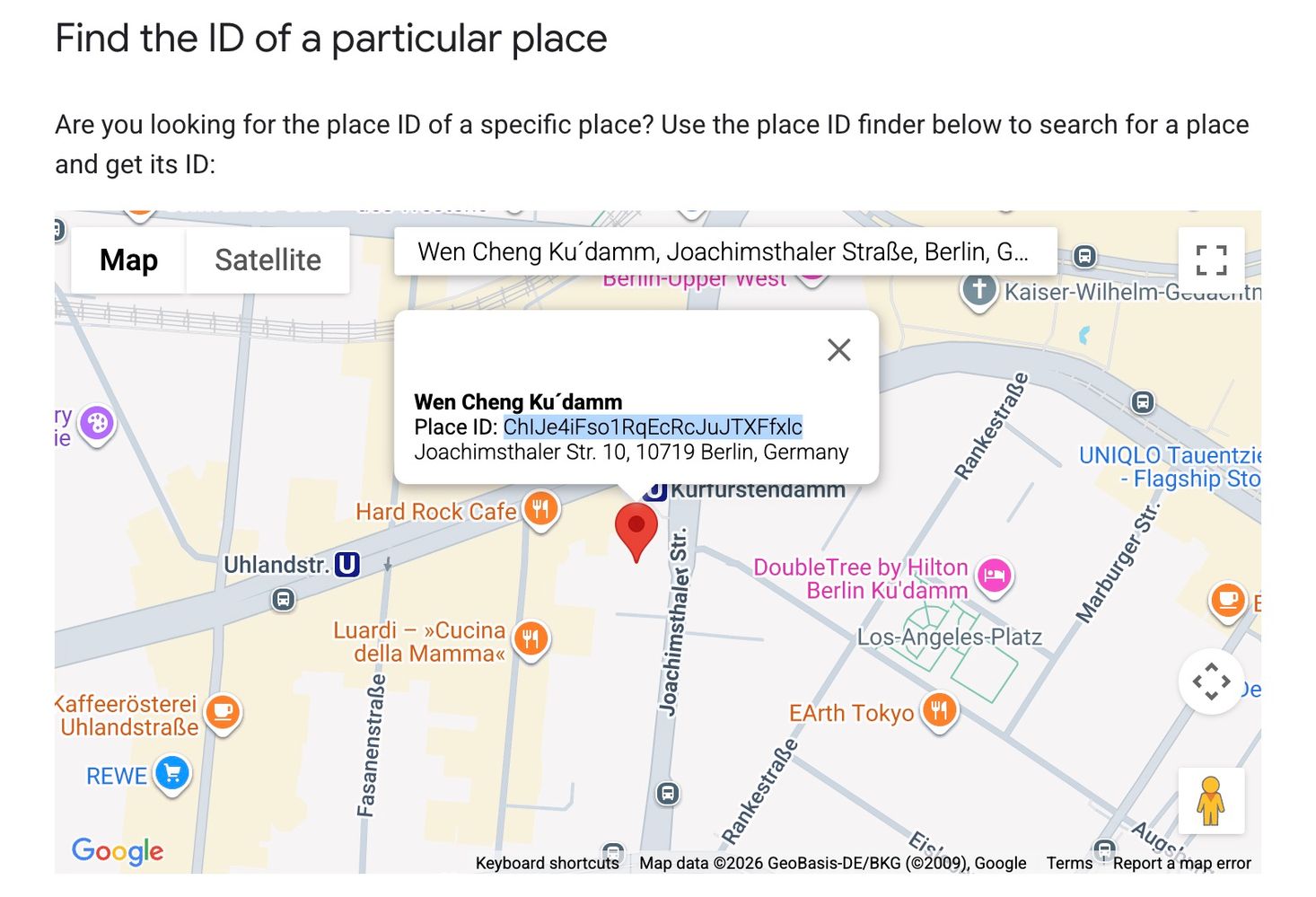
- Place ID: If you have a specific Google Place ID, you can paste it here in the format place_id:your_place_id for maximum precision. You can find it here.
5. Publish your changes: Click the Publish button in the top right corner. Your map is now live and ready to guide your customers.
Pro-Tip: Make sure your business is listed on Google Business Profile. This ensures that when customers click on the map on your website, they can easily get directions or see your opening hours.
Still have questions?
Feel free to contact us via chat on our website. We’re online weekdays from 10 AM to 6 PM CET.
Wanna talk to a person?